
SmartAccess multiscan is a biometric fingerprint sensor (area sensor) wired to the SmartAccess Module. It lets users open the door with an enrolled finger, and can additionally act as a SmartTouch trigger for KeylessGo. The app never talks to the sensor directly — all data flows through the SmartAccess Module.
Sensor states & what you need
- Unpaired – no sensor; the FingerprintKey type is hidden and no fingerprint keys exist.
- Paired – sensor known to the Module but not currently connected.
- Ready – sensor paired and connected; enrolment and fingerprint opening work.
Enrolling a fingerprint
Enrol fingers from Manage Keys → Add Key → FingerprintKey (max 10 fingers per key). During scanning the sensor gives live feedback; if a scan can’t be used, a clear message explains why.
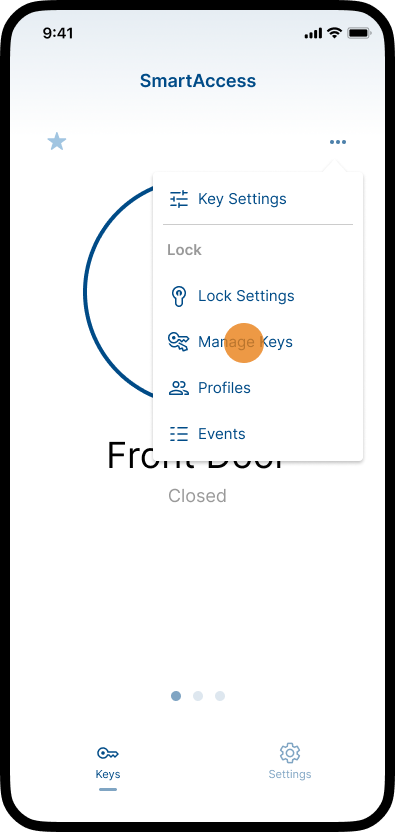
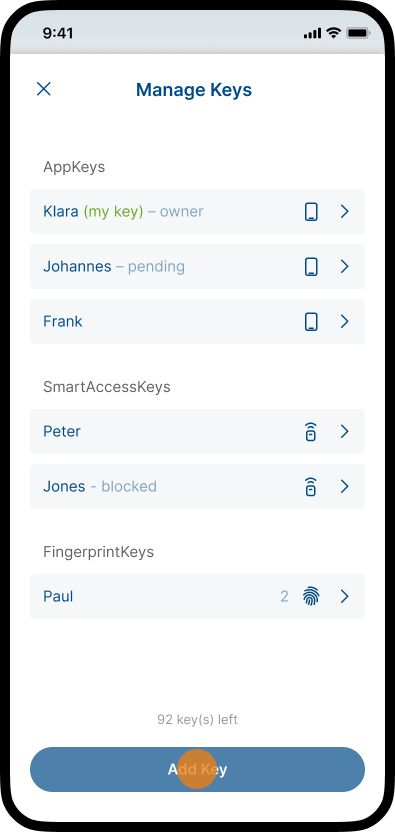
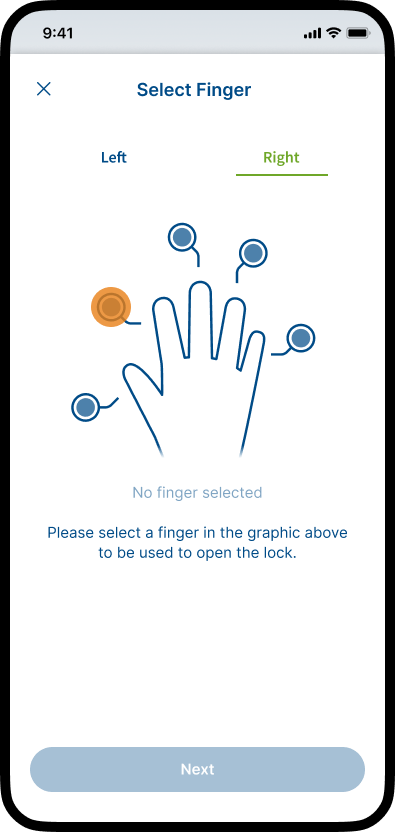
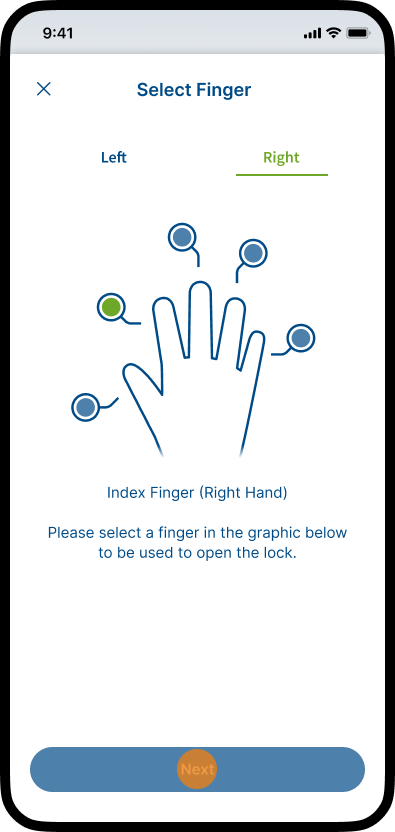
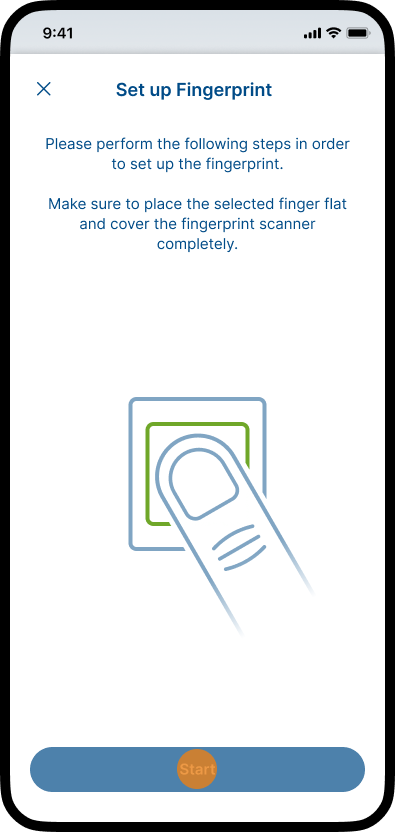
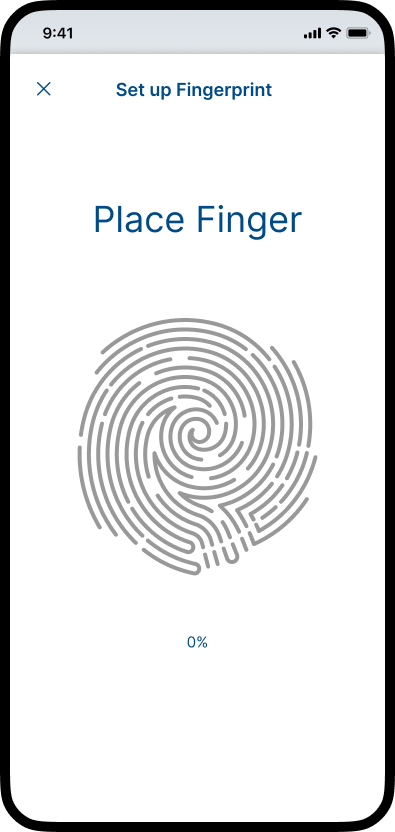
- Tap the three dots icon in the top right corner and choose Manage Keys.
- Tap Add Key.
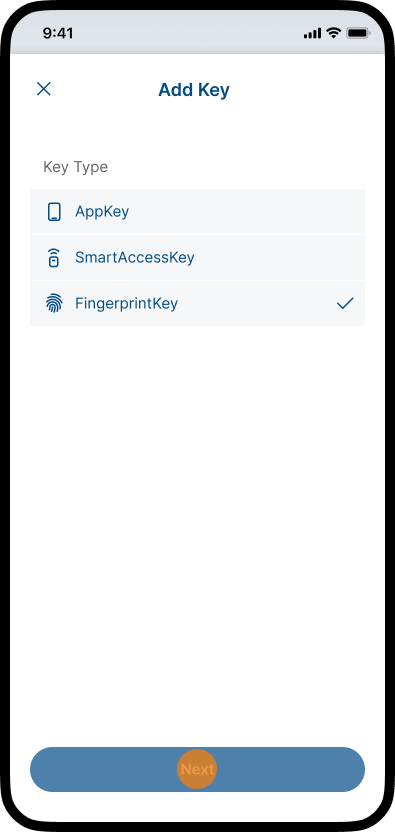
- Select the key type FingerprintKey and tap Next.
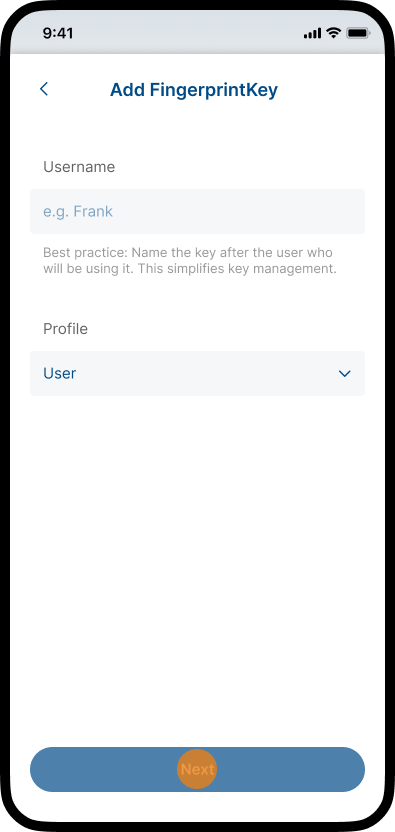
- Assign a Username and choose a Profile.
To add the key tap Next.
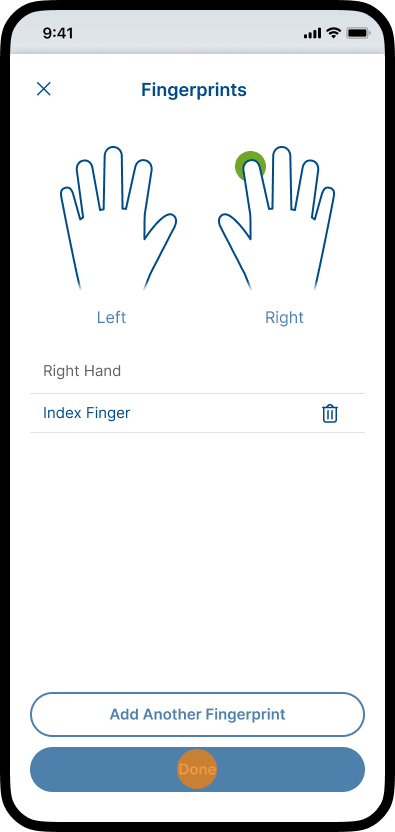
Note: For more information on how to add and edit profiles, see chapter Profiles. - Choose left or right hand and select a finger in the graphic to be used to open the lock.
- Tap Next.
- Tap Start.
- Place your previously selected Finger on the fingerprint sensor.
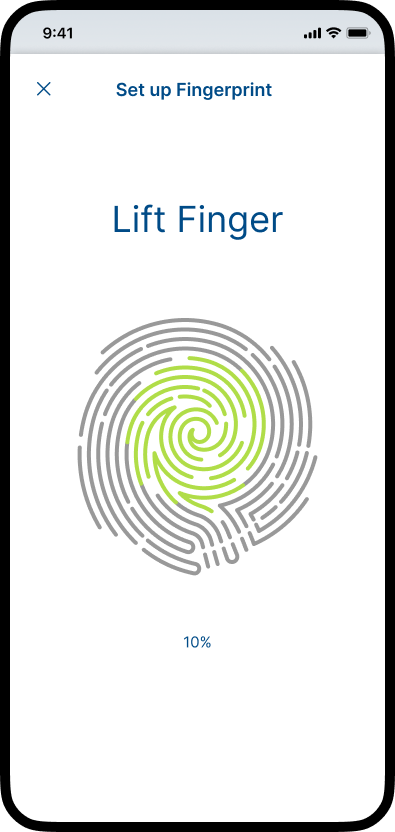
- Lift and re-place the same finger. The print fills green as coverage grows.
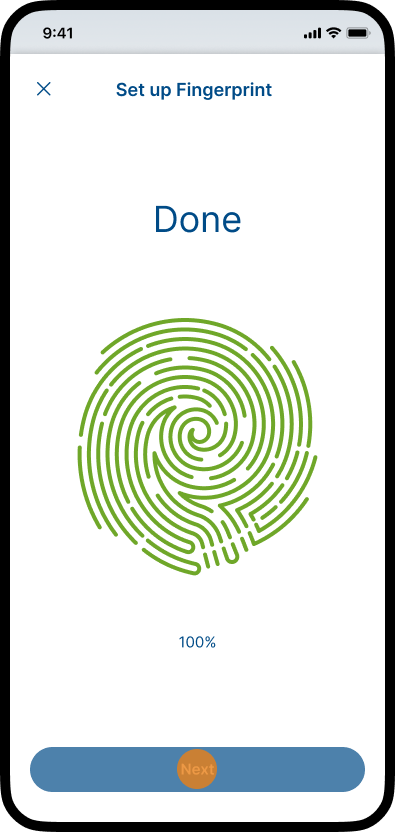
Lift & place your Finger until the enrollment process is complete. - Tap Next.
- Tap Add another finger to add another finger to the key or tap Done to complete the process.
Editing a FingerprintKey
After a FingerprintKey has been created, it can be edited at any time. Go to Manage Keys, tap the FingerprintKey, and select Edit.
From the Edit Key screen, you can:
- add additional fingers (up to 10 per FingerprintKey),
- remove enrolled fingers by tapping the trash icon next to the assignment and confirming the deletion,
- edit the key name and assigned profile.
Incomplete (Pending) Finger Enrolment
If finger enrolment is interrupted—for example, because you leave the screen, close the app, or the scan cannot be completed—the enrolment is not discarded. The FingerprintKey remains stored on the SmartAccess Module, and the incomplete finger is marked as Pending (yellow) on the Edit Key screen.
You can either:
- Resume – Tap the pending (yellow) finger to continue the enrolment until it is completed.
- Remove – Delete the pending finger assignment if it is no longer required.
A pending finger continues to occupy a key slot until the enrolment is completed or the pending finger is removed. The Resume option is only available while the multiscan SmartAccess fingerprint sensor is connected.
How to place your finger (for a smooth scan)
For a quick, reliable enrolment — and for everyday unlocking afterwards:
- Place the centre of your fingertip flat on the sensor, covering as much of the pad as possible.
- Hold still until prompted, then lift and re-place the same finger; shift it slightly each time so the edges are captured.
- Choose a finger you can present the same way at the door — usually the index finger or thumb.
Avoid:
- A dirty or wet sensor — wipe it clean and dry first.
- A very dry or cold finger (warm it or breathe on it), or a very wet finger / pressing too hard (dry it and press gently).
- Scanning the same small spot every time, or switching fingers midway through enrolment.
Enrolment errors — reversible vs. unrecoverable
If a scan can’t be used, the sensor shows a clear message. There are two kinds, told apart by the button offered:
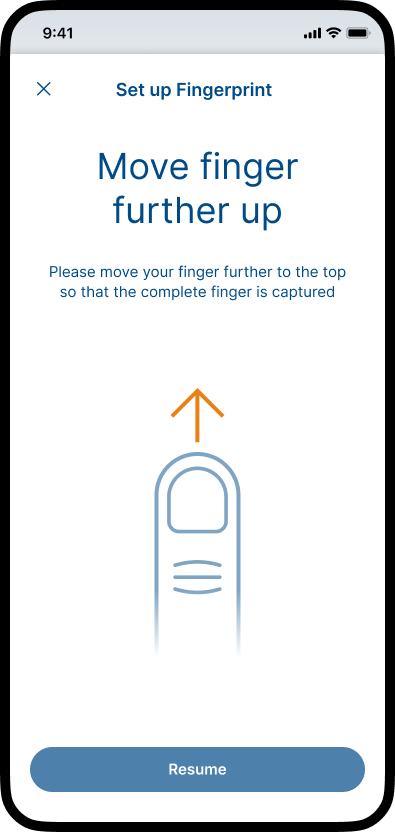
Reversible — tap Resume and carry on. The enrolment keeps the progress you already have and returns you to the Place Finger screen.
| Message | What it means | How to fix it |
|---|---|---|
| Sensor dirty | The sensor surface is dirty. | Clean the sensor, then tap Resume. |
| Move finger further up | Only part of the fingertip reached the sensor (or you drifted onto another finger), so the top of the print is missing. | Slide the finger toward the top of the sensor so the whole tip is read, then tap Resume. |
| Finger too cold / dry | Too little moisture for a clear ridge pattern. | Warm the finger or breathe on it, then tap Resume. |
| Finger too wet / pressed too firmly | Moisture or heavy pressure blurs the ridges. | Dry the finger and press gently, then tap Resume. |
| Change finger position | The same area was scanned repeatedly; the edges are missing. | Shift the finger slightly on each touch, then tap Resume. |
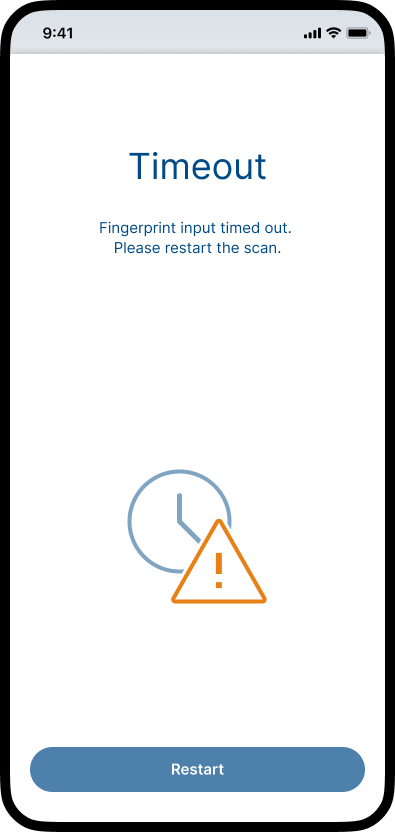
Unrecoverable — tap Restart and enrol again. The part-finished finger is discarded and enrolment starts over from Select Finger.
| Message | What it means | How to fix it |
|---|---|---|
| Finger too small | Too little contact area to read enough ridges. | Tap Restart and choose a different, larger finger. |
| Fingerprint already exists | The finger you scanned is already saved as a key. | Tap Restart and pick a different finger. |
| Timeout | No usable input arrived in time; the scan was cancelled. | Tap Restart and place the finger promptly, holding it flat until prompted to lift. |
Note: Closing an error returns you to Manage Keys. An incomplete enrolment can be resumed later from Manage Keys → the FingerprintKey, and an errored enrolment can be removed there too.
Use the sensor as a SmartTouch trigger
A door has either SmartTouch hardware or the multiscan SmartAccess fingerprint scanner — never both. Enable Use as SmartTouch Device in Lock Settings and the fingerprint scanner does everything a SmartTouch handle or sensor would do — triggering KeylessGo and Party Mode — in addition to reading fingerprints. So fitting the fingerprint scanner instead of SmartTouch costs you no functionality.
Exchanging or resetting the sensor
SmartTouch hardware and the multiscan SmartAccess fingerprint scanner are interchangeable on a door (a door has one or the other). What you need to do depends on the swap:
| You change… | What you do | What happens |
|---|---|---|
| SmartTouch → another SmartTouch | Nothing | Automatic — the Module keeps working with the new SmartTouch. |
| SmartTouch → fingerprint scanner | Nothing | Automatic — the new fingerprint scanner pairs with the Module on its own. Then enrol fingers to use fingerprint unlock. |
| fingerprint scanner → SmartTouch | Fit the SmartTouch first, then reset | First wire / fit the SmartTouch sensor or handle. Then open the app and run Lock Settings → Reset multiscan SmartAccess. The Module keeps the fingerprint-scanner pairing until you reset it — so if the wiring is loose or a cable is damaged you can re-wire and recover without losing the setup. (The Module can’t detect SmartTouch hardware on its own, so you clear the old pairing manually once the new hardware is in place.) |
| fingerprint scanner → another fingerprint scanner | Nothing | Automatic — the Module deletes the pairing it held for the old scanner, then pairs and resets the new one (any data already on the new scanner is erased). The fingerprint keys are removed from the Module, so re-enrol the fingers you want. |
How fingerprint data is stored. The fingerprint scanner holds the biometric data; the Module stores only the references (IDs) to those fingerprints — never the biometric data itself. A fingerprint scanner works only with the Module it is paired to. When you swap one scanner for another, the Module deletes the pairing it held for the old scanner, then pairs and resets the new one.
What happens to the removed scanner. Removing a scanner removes the fingerprint keys (the IDs) from the Module — the biometric data physically stays on the removed scanner, but it can no longer be read by anyone. Wiring that scanner to another Module (or back to the same one after the pairing is gone) reads nothing from it, and the scanner is reset automatically. SmartTouch hardware stores no personal data, so swapping it needs no reset.
Manual reset: Reset multiscan SmartAccess in Lock Settings removes the scanner pairing and the fingerprint keys/fingers from the Module. It is available even while the scanner is disconnected.